
Managing production lines, multi-stage shipping workflows, or inspection processes on monday.com often involves repetitive manual updates — slowing teams down and introducing the risk of human error. With Triggerly’s One QR Code setup, you can streamline entire workflows by scanning a single code to update multiple status columns, instantly.
Whether you’re managing a fulfillment center or running on-site field inspections, this automation lets you eliminate step-by-step manual updates and replace them with a smart QR scan that drives consistent, multi-stage progression across your monday board.
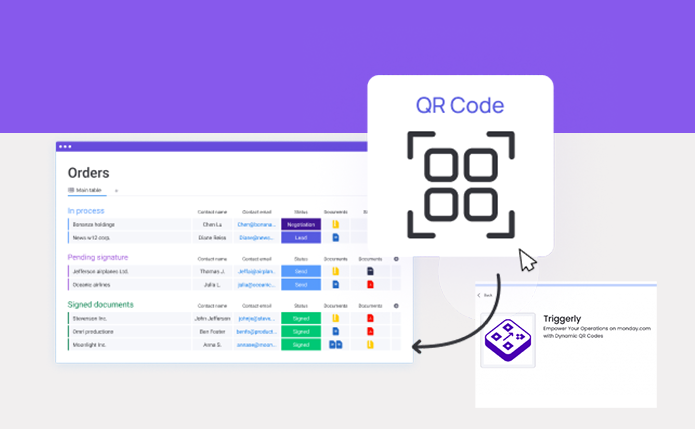
Setup Instructions
Using just one QR code for triggering different statuses is possible when combining Triggerly and monday.com native automations. This is a common solution for production lines, shipping and asset management use cases.
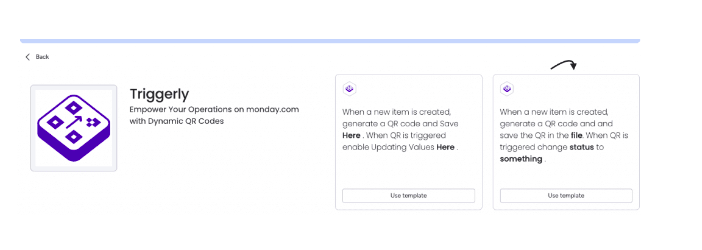
For this process, you need to install the integrations template shown above or use the one that is triggered when status is changed (recommended when you already have a board with existing items in place).

1. Choose the Trigger Label
Select “Scanned” as the label that will be triggered when QR code is scanned.
2. Create Your Workflow Status Column
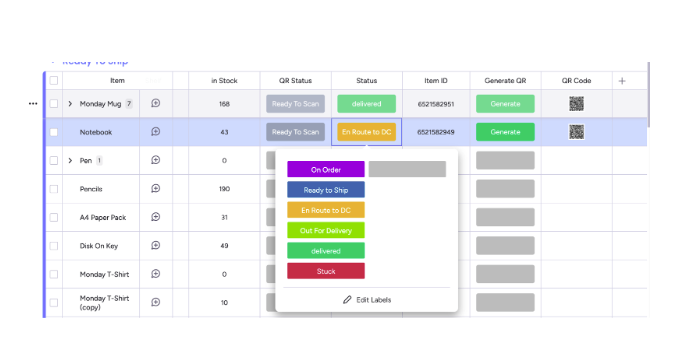
Create a new status column in your board for all of your workflow steps.
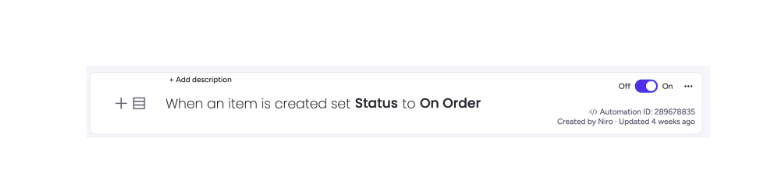
3. Build Your First Automation
Create an automation that will change the default status of the QR status column to “On Order” (for example) when a new item is created. This is the first step of your workflow.
You should now have two status columns in your board: “QR Status” and workflow “Status”. And all of your workflow steps should already be created in your workflow “Status” columns. Now it is time to create the automation conditions that will enable you to use one QR code to change your workflow “status” based on the progress of the workflows.

4. Add Status-Based Conditions
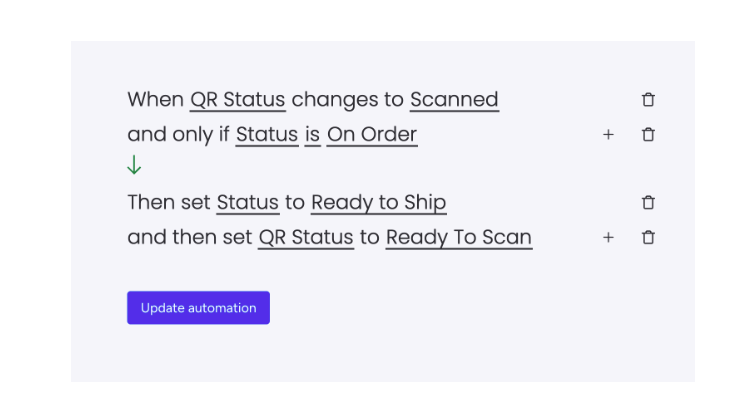
Click on “add automation” and fill it with the conditions that fits your workflow. In this case, when the status value is “On Order” → The default value → Scanning the QR will change it to “Ready to Ship” → and to reset “QR status” back to ready to scan. Save this automation.
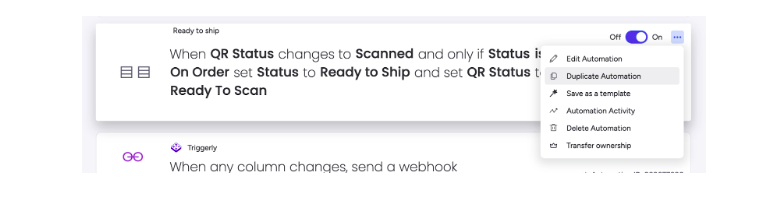
5. Duplicate for Next Workflow Steps
Repeat by configuring the next conditions of your workflow. Once all steps are in place you are ready to use one QR code for multiple triggers of status columns.
6. Demo Available
Here is a short video demo for configuring one QR code for multiple status columns.

Real-Life Use Case
Logistics & Fulfillment Centers: Automatically move orders from “On Order” to “Ready to Ship” to “En Route” and more — without touching a single field. Great for shipping teams who want a hands-free board update experience.
Construction & Field Service Projects: Enable site supervisors to mark job progress or equipment status updates using a mobile device scan. No monday login or app required.
Benefits Recap
- Trigger multiple board updates with one scan
- Eliminate repetitive manual actions
- Enable faster, error-free workflow transitions
- Save time for on-site and mobile teams
- Easily scalable for production and logistics teams
Conclusion
This method empowers teams to work smarter with fewer touchpoints. Whether you’re processing inventory, fulfilling orders, or completing service routes — you can use one QR code to automate the whole process from start to finish.
With Triggerly and monday.com, flexibility meets simplicity.
If you need help implementing this workflow or customizing it for your business case, reach out to the Jetpack team for guided setup or demo support.