
For teams managing shipments, the tracking workflow is a constant source of friction. Someone enters a tracking number, opens a courier website in a separate tab, copies the status update, pastes it back into the board. Multiply that by dozens of shipments across multiple carriers and it becomes a daily time drain, with status data that’s always slightly out of date.
TrackMy is a monday.com app that automates this entirely. Once set up, it pulls live parcel tracking data from over 1,500 delivery providers directly into your board columns. This tutorial covers the full setup from installation to your first live tracking update.
What You Can Do With TrackMy Board View
- Track from 1,500+ carriers: Supports major global and regional couriers including FedEx, DHL, UPS, and hundreds more, all from the same board.
- Automate status updates: A monday.com automation triggers on a column change, picks up the tracking ID, and populates delivery data automatically.
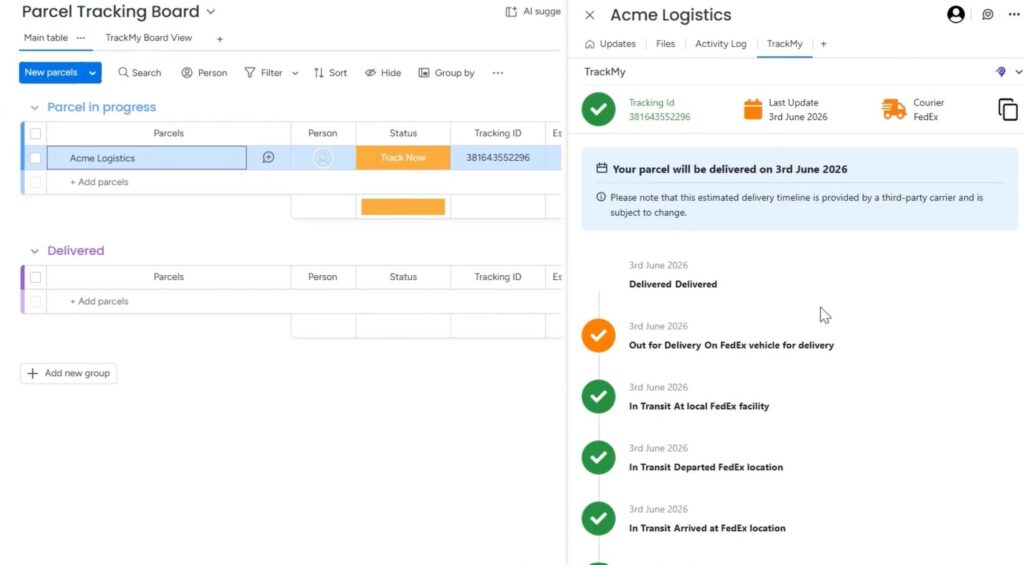
- See full shipment timelines: The TrackMy Item View shows a detailed timeline of each parcel’s journey, not just the latest status.
- Map multiple data fields: Pull in delivery status, current location, last update date, and estimated delivery date into separate board columns.
- Use with subitems: TrackMy also works at the subitem level, useful for orders with multiple packages.
- Built-in support tools: Credit usage, chat support, and a one-click Reconnect button are all accessible directly from the app.
How This Helps Different Teams
- Operations and Logistics: Monitor all outbound and inbound shipments on a single board without leaving monday.com.
- E-commerce and Fulfillment: Automatically update order tracking status as items move through the delivery network, reducing customer support queries.
- Procurement: Track supplier deliveries and get estimated arrival dates mapped directly to your purchase order items.
- Customer Success: See live delivery status on client-facing orders and flag delays before customers notice them.
- Field Services: Track equipment or parts shipments and tie estimated delivery dates to project timelines.
Step-by-Step Setup Guide
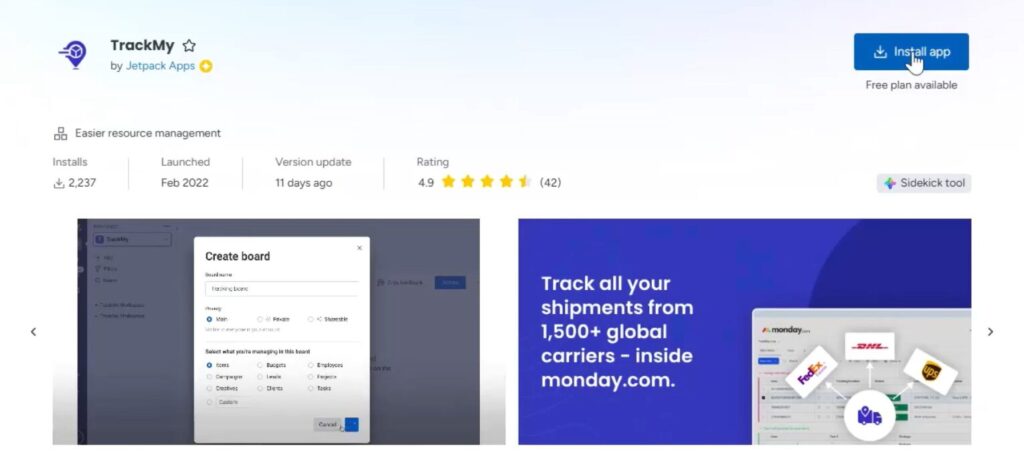
1. Install TrackMy from the monday.com Marketplace
Open the monday.com Marketplace and search for TrackMy. Click Install, choose your starting template or select the board you want to install on, then click Add App.
This installs two components on your board: the TrackMy Board View for a shipment overview, and the TrackMy Item View for per-item tracking timelines.

2. Review the Setup Screen
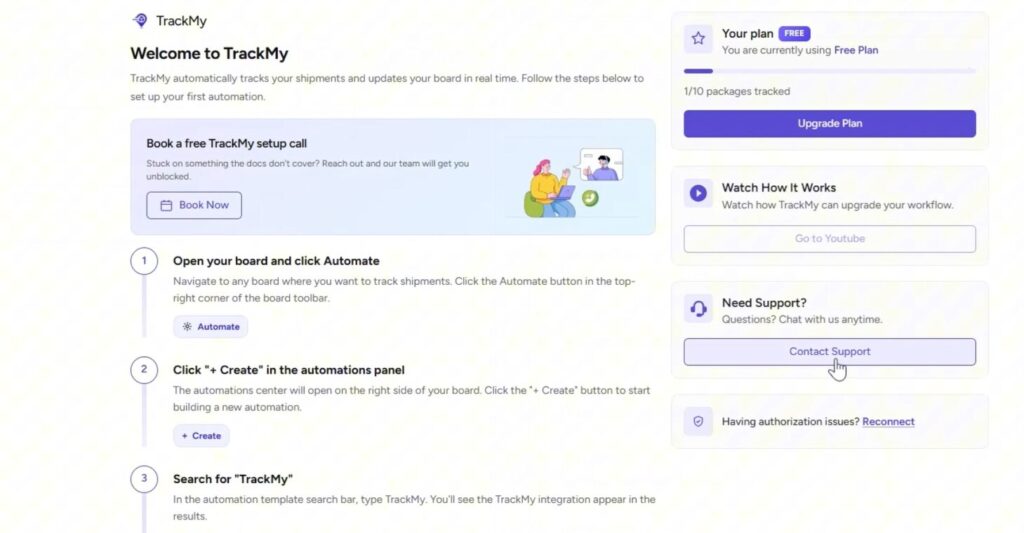
After installation, you’ll see a setup screen with the steps needed to configure the app. This screen also shows your current credit usage, a chat support link, and a Reconnect button for resolving any connection or authorization issues.
3. Create the Tracking Automation
Click Automate on your board, then search for TrackMy. Select the automation that reads: when a column changes, pick up a tracking ID and search for the latest delivery information.
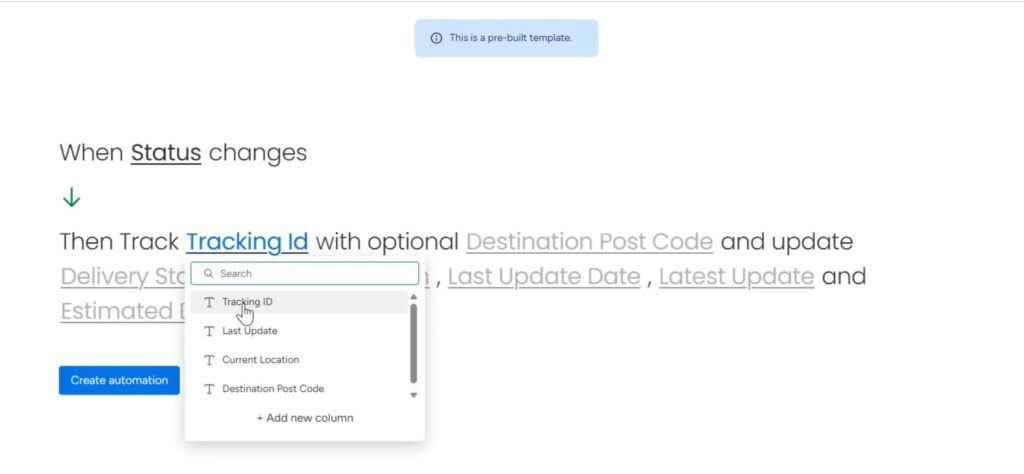
Configure the automation by mapping the following:
- Set your status column as the trigger.
- Select your tracking ID column (create a text column if needed).
- Destination Postcode (optional, depending on courier).
- Map output columns: delivery status, current location, last update, and estimated delivery date.
Click Create Automation.
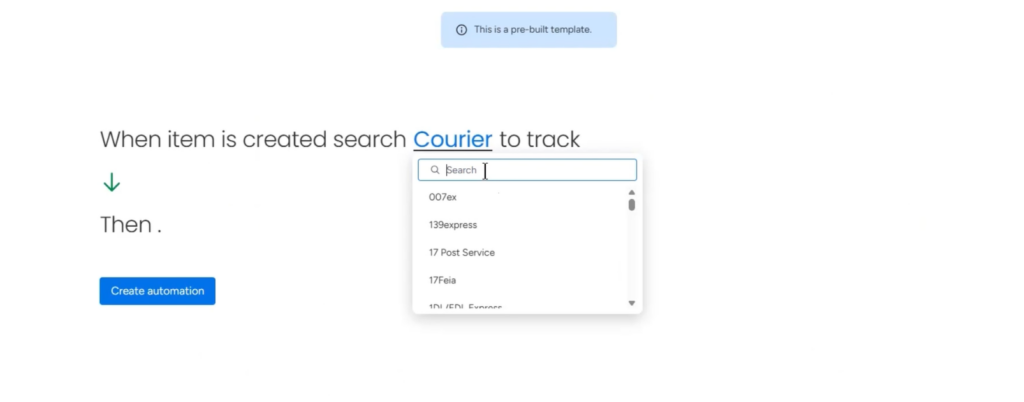
4. Create the Courier Selection Automation
You’ll need a second automation to specify which courier provider TrackMy should search. Click Automate again, search for TrackMy, and select the courier automation. Search for and select your courier (for example, FedEx), then click Create Automation.
Both automations are now active and your board is ready to track.
5. Test with a Live Tracking ID
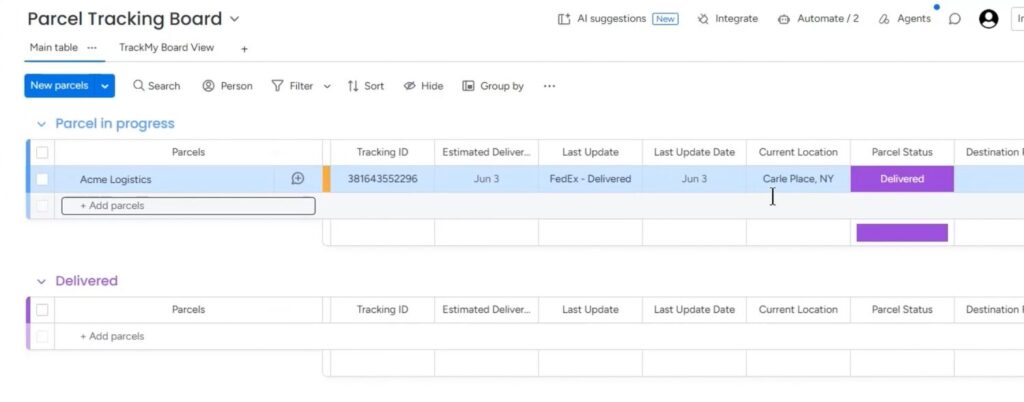
Add a tracking ID to a board item, then change the status column value to trigger the automation. Within moments, all mapped fields populate automatically: delivery status, current location, last update, and estimated delivery date.
Open the TrackMy Item View to see the full shipment timeline for that item.
Summary
TrackMy removes the manual effort of checking courier websites and copying tracking data into monday.com. Once the two automations are in place, your board updates itself whenever a tracking ID is triggered, giving your team a live view of every shipment without leaving their workflow.
Ready to try it? Install TrackMy from the monday.com Marketplace and follow the steps above to get your first automation running.
