
Manually copying data from each incoming email and copying it into the correct columns on your monday.com board is a slow, tedious and time-consuming process. If we can automate data extraction from Outlook on monday.com, we save time largely. This manual effort can lead to delays in responding to critical messages, potential data entry errors, and a fragmented workflow as team members switch between Outlook and monday.com. Important details might get missed or incorrectly logged, hindering your team’s ability to act swiftly and accurately.
Effectively managing inbound communication is crucial for any team. Whether you’re handling customer inquiries, sales leads, or project submissions, getting key information from emails into your monday.com board quickly can significantly boost productivity.
That’s where Extract AI for monday.com comes in.
Eliminate manual Email data entry with Extract AI:
Imagine your team uses an Outlook inbox to receive various requests, such as support tickets, new client inquiries, or vendor applications. Each email contains vital information like the sender’s name, their contact email, and perhaps an attached file or specific details within the email body.
Instead of reading emails and entering data manually, every new message can automatically trigger a new board item—fully populated with important details such as:
- Sender name
- Email address
- Attachments
- Full email body content
- Custom fields based on your workflow
This creates a seamless bridge between Outlook and monday.com, helping teams stay organized and respond faster. Extract AI intelligently scans new emails and automatically populates designated columns with the above specific details.

How Extract AI Streamlines Outlook Email Workflows
Imagine your Outlook inbox receives daily requests such as:
- Support tickets
- New customer inquiries
- Vendor applications
- Project submissions
Each email contains valuable information that needs to be tracked.
With Extract AI, incoming emails automatically generate new monday.com items while Extract AI intelligently scans and fills in the right columns—so your team can act immediately without manual effort.
How teams use Extract AI for Email automation?
Extract AI makes sure all critical information is immediately available and actionable within your monday.com workflow making it easier for teams to:
- Support Teams: Automatically log new support requests, email details, and attachments as ticket items.
- Sales Teams: Instantly capture inbound leads instantly from inquiry emails and route them to the right rep.
- HR: Process applications, vendor forms, and onboarding requests without manual copying.
Step-by-Step Setup: Connect Outlook to monday.com with Extract AI
Setting up Extract AI with Outlook takes only a few minutes. Follow these steps to get directed in the right way.
- Add Necessary Columns to Your Board:
- Before setting up the app, ensure your monday.com board has the appropriate columns to receive the extracted data. For example, add a “Text” column for Sender Name, an “Email” column for Email Address, and a “Files” column for File attachments.
- Access the Extract AI App:
- From your monday.com board, navigate to the Apps section and open the Extract AI app.
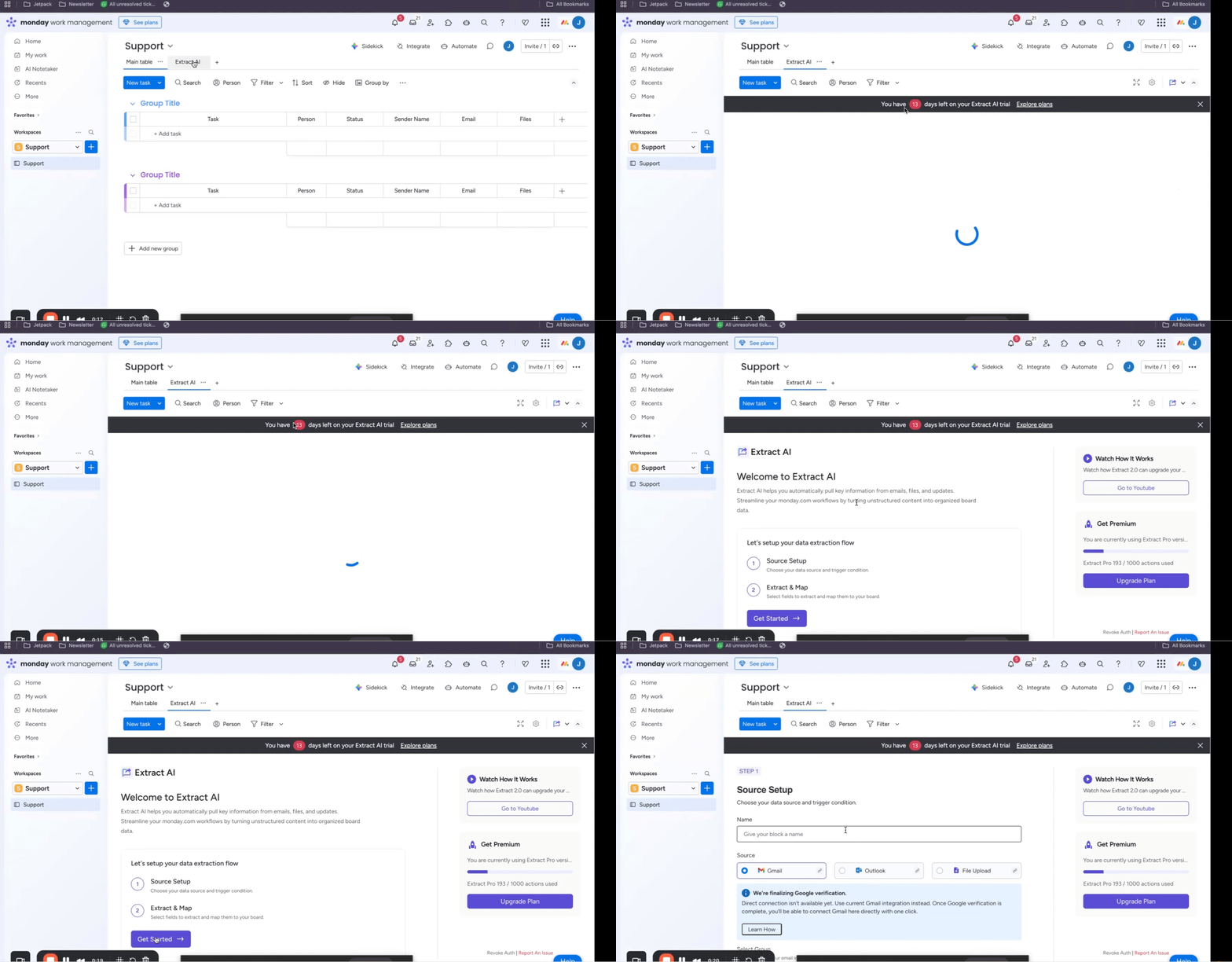
- Select Outlook as the Email Source:
- Choose Outlook as the email source for this AI block.
- Connect your Outlook Account:
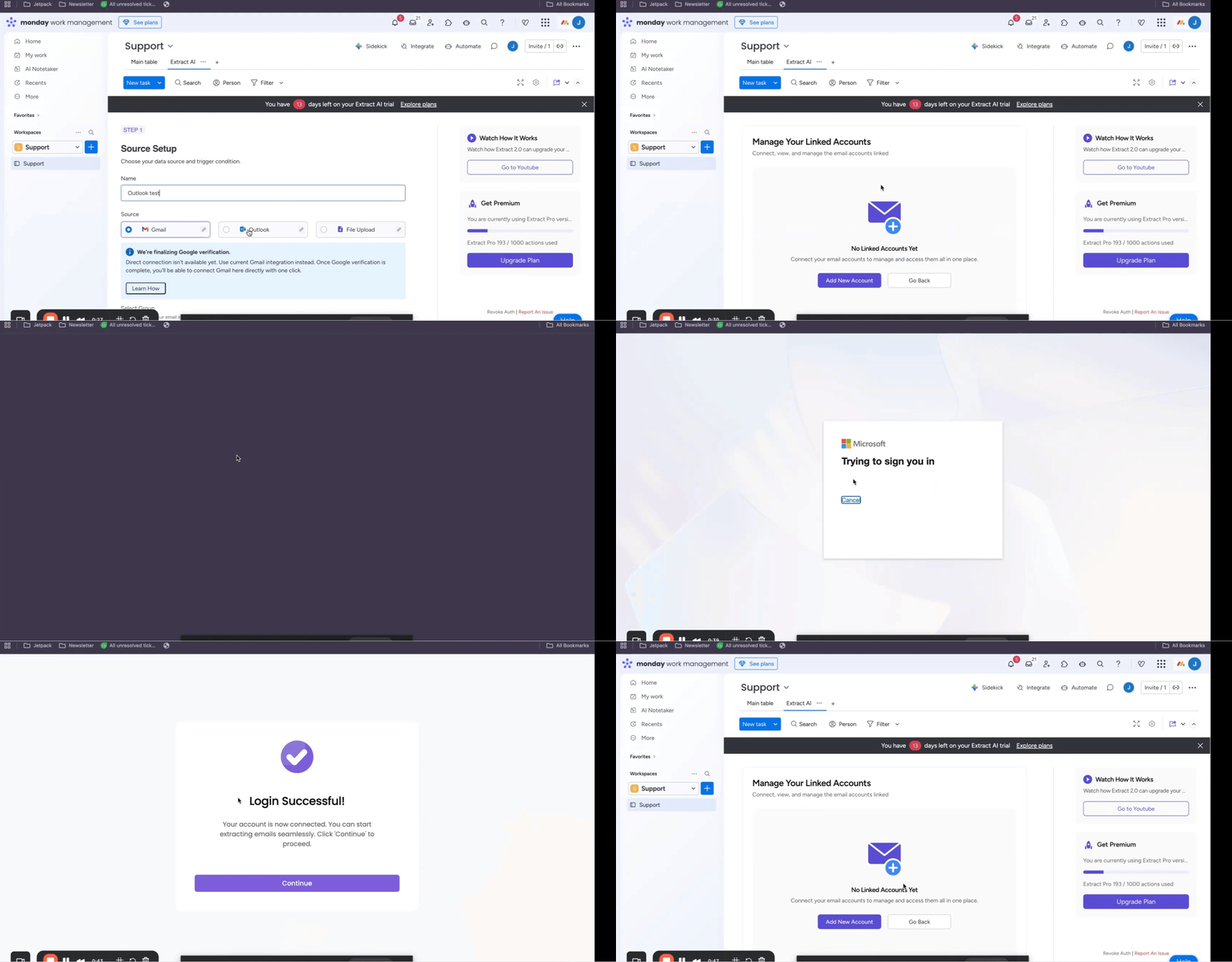
- Click to connect your Outlook account. You will be prompted to sign in with your email address and password.
- Click on Continue on the next screen.
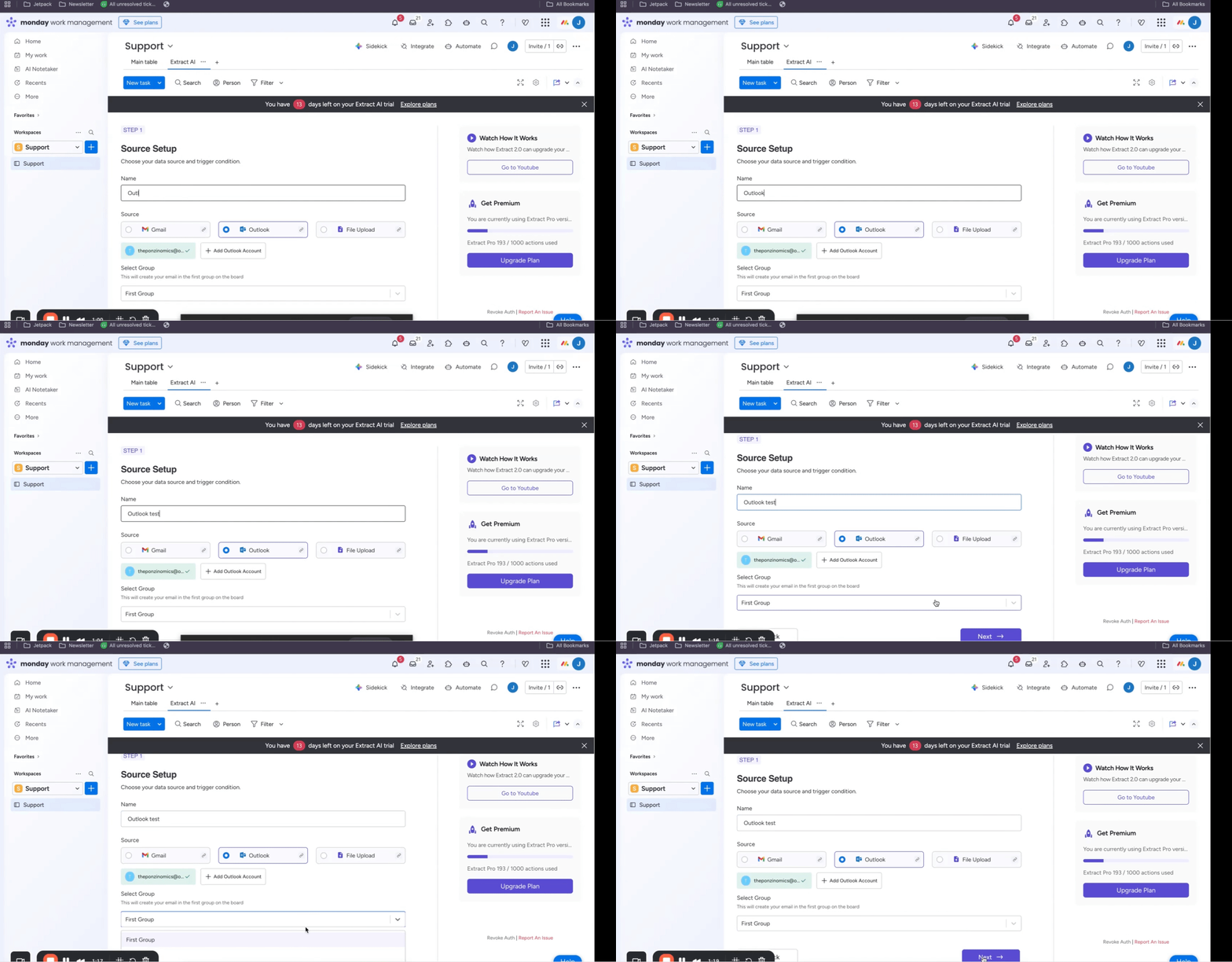
- Verify Account and Select Board Group:
- Once connected, ensure your Outlook account is selected
- Next, name the AI block and select the specific group on your monday.com board where you want the new email items to be created. Click “Next.”
- Choose Data to Extract:
- Now, select the data fields you wish to extract from incoming emails. Common selections include:
- Email Address → (map to your Email column)
- Sender Name → (map to your Text column for sender names)
- File → (map to your Files column)
- Now, select the data fields you wish to extract from incoming emails. Common selections include:
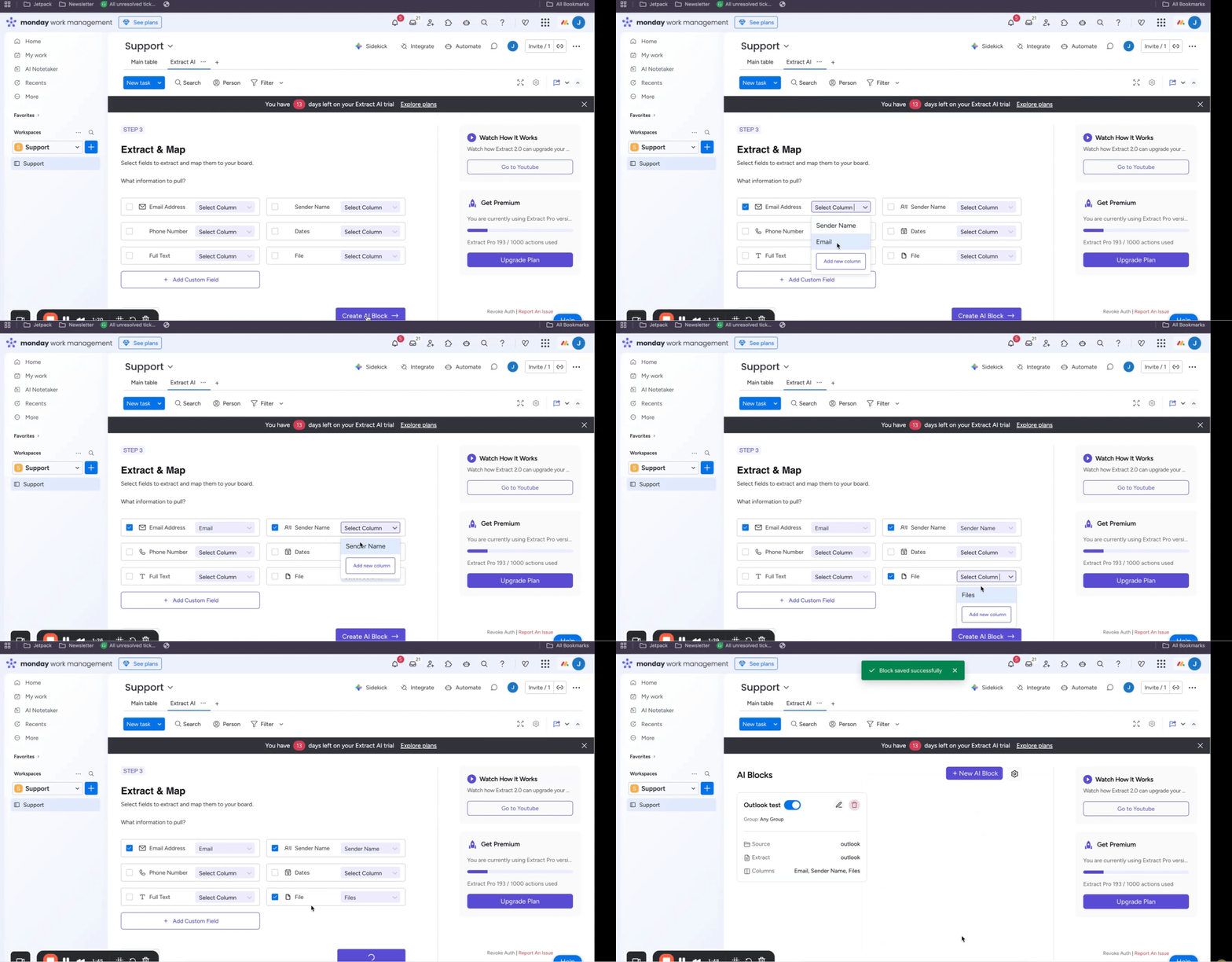
- You can select additional pre-defined fields or add custom fields as needed.
- Create AI Block:
- Review your selections and click the “Create AI Block” button.
- Complete Setup:
- Click “Done” to finalize the setup. You are now all set.
Tips and best practices for success:
- Column Matching: Ensure the column types on your monday.com board (e.g., Email, Text, Files) accurately match the data types you intend to extract from Outlook to prevent data loss or formatting issues.
- No Redundant Automations: The Extract AI app manages email ingestion directly. You do not need to create standard monday.com Outlook automations for the same purpose, as this could lead to duplicate items on your board.
- Target Specific Groups: Use specific board groups to organize incoming emails effectively. This helps in categorizing and assigning new items quickly for your team.
- Test Thoroughly: After setup, send a few test emails from the connected Outlook account to verify that all desired data is extracted correctly and lands in the right columns on your monday.com board.
What you can do now:
With the Extract AI Outlook setup complete, your team will no longer spend time manually moving email information to monday.com. Any new emails arriving in your connected Outlook account will automatically create new items on your board, complete with extracted sender details, relevant content (often as the item name), and any attached files. This means immediate visibility into new communications and faster action on critical tasks, all seamlessly integrated within your existing monday.com workflows.
Automate Outlook Emails into monday.com today
Extract AI helps teams eliminate manual email processing and unlock faster, smarter workflows directly inside monday.com.
- Automatically turn emails into monday.com items
- Capture sender details instantly
- Attach files without manual upload
- Maintain a centralized workflow for inbound communication
- Respond faster with full visibility into new requests
Ready to streamline your inbox and take action instantly?
Extract AI makes email extraction seamless.